
Adding, removing and ordering currencies
The currencies you enable are the ones your shoppers can choose from. If you sell to customers in Europe, the UK and Kuwait, for example, you would enable EUR, GBP and KWD next to your store currency, and a shopper in Kuwait could then browse and pay in Kuwaiti dinar. The plugin knows 154 currencies. On first activation it enables USD, EUR, GBP, JPY and CAD, plus your WooCommerce store currency if it is not one of those.
How it works#
Your list of enabled currencies controls three things:
- The switcher. Only enabled currencies appear in the currency switcher popup and in the menu switcher, in the order of your list.
- Detection. When geo detection or a location rule picks a currency for a visitor, it is only used if that currency is enabled. Otherwise the visitor sees your default currency.
- Settings panels. Each enabled currency gets its own panel on the Pricing tab (fee, rounding, number format) and on the Payments tab (payment methods).
Your store currency is always in the list. It is the currency you enter product prices in, and it cannot be removed.
Set it up#
- Go to WooCommerce > Currency Switch > Currencies.
- To add a currency, click the search box (Search currencies to add (e.g. EUR, Japanese Yen…)) and type a currency code or name, such as
KWDorKuwaiti. Click the currency in the list, or use the arrow keys and press Enter. It is added to the bottom of your list. - To remove a currency, click Remove on its row. Your store currency shows a Store currency label instead of a Remove button.
- To change the order, drag a row by its handle (the dotted grip on the left) and drop it where you want it. The Pricing and Payments panels follow the same order.
- Click Save Changes at the bottom of the page.
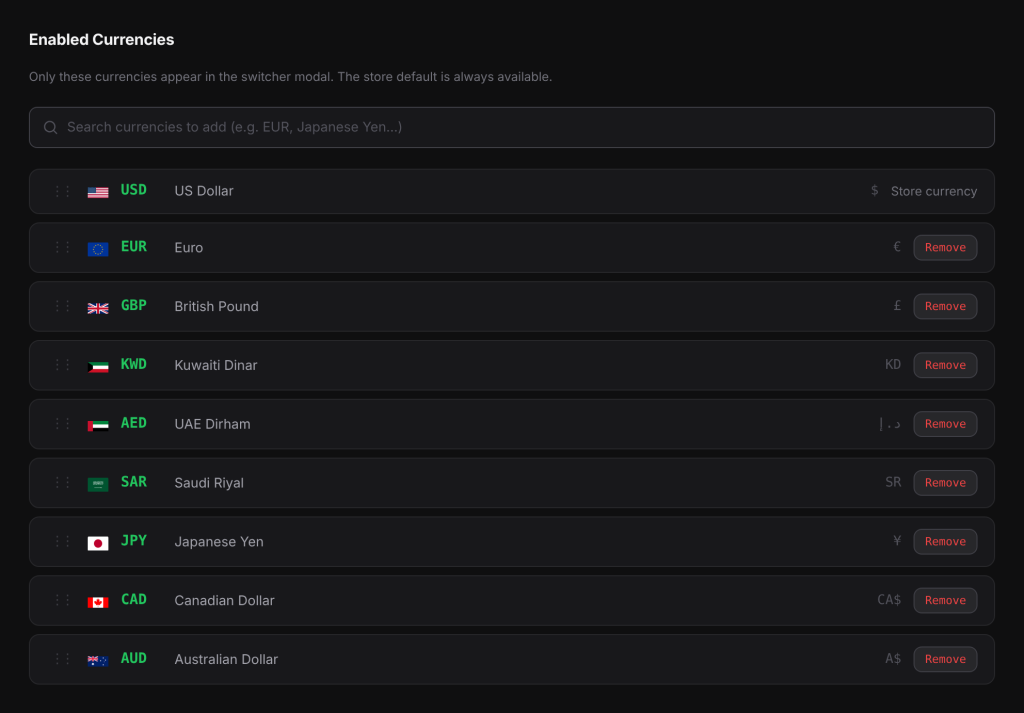
After adding a currency, open the Pricing tab to set its conversion fee, rounding and number format, and the Payments tab to choose which payment methods it offers. If you do nothing, the currency uses the live exchange rate with no fee, no rounding and all your payment methods.
Examples#
A store selling in USD, EUR and KWD. Your store currency is USD. You remove JPY and CAD, add KWD, and drag the rows into the order USD, EUR, GBP, KWD. The switcher now offers those four currencies in that order, and a visitor from Japan, whose currency is no longer enabled, sees USD.
Putting the most popular currency first. Most of your shoppers pay in EUR, so you drag EUR to the top. EUR is now the first option in the switcher popup, while USD stays your store currency.
Good to know#
- The order of the list does not change your store currency. To change that, see Setting the default currency.
- A shopper who chose a currency you later remove is no longer shown it. The plugin ignores their saved choice and picks a currency again, using detection and then your default currency.
- A location rule that points to a currency you removed is ignored, and visitors from that country see your default currency.
- Fixed product prices you entered for a currency stay saved on your products when you remove the currency. If you add the currency back, they are used again.
- Every currency needs an exchange rate. If your rate provider has no rate for a currency and you have not set a fixed rate, its prices are not converted. Check the Rate History table on the Rate Provider tab: a dash (-) in a currency’s column means no rate was received.
If you enable many currencies, keep Show search bar in modal turned on under General. The plugin recommends it when 8 or more currencies are enabled.
Related docs#
- Setting the default currency
- Choosing an exchange rate provider
- Price rounding and conversion fees
- Payment methods per currency