
Checkout currency options
By default, a shopper pays in the currency they browsed in, and the order is saved in that currency. A shopper who browsed in EUR pays in EUR, and you see a EUR order in WooCommerce. Two options in the Checkout section of the General tab change how checkout behaves: you can take every payment in your store currency, or stop shoppers from switching currency once they reach the cart and checkout.
Your store currency is the currency your product prices are entered in, set as the Default Currency. Some labels call it the “base currency”, for example Settle orders in base currency. Both names mean the same thing.
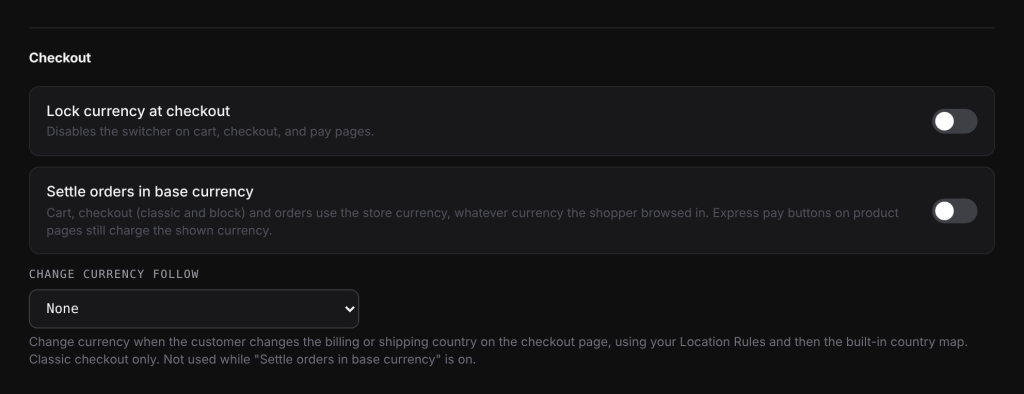
Settle orders in base currency#
How it works#
With Settle orders in base currency on, shoppers still browse your products in their own currency. When they open the cart, the checkout or the order pay page, everything switches to your store currency, and the order is created and paid in your store currency.
This covers the classic and block cart and checkout, including the background requests these pages make while the shopper fills in the form, and orders created through the block checkout.
The shopper’s own currency choice is not changed. When they leave the checkout and go back to a product page, they see their own currency again.
When to use it#
Use it when your payment provider or bank account can only settle in one currency, or when you want all your orders, refunds and accounting in one currency, while still letting shoppers see approximate prices in their own currency.
Set it up#
- Go to WooCommerce > Currency Switch > General.
- In the Checkout section, turn on Settle orders in base currency.
- Click Save Changes.
- Add a product to the cart in another currency, open the cart, and check the totals now show your store currency.
Lock currency at checkout#
How it works#
With Lock currency at checkout on, the currency switcher cannot be used on the cart, checkout and order pay pages. The switcher button is disabled and shows the tooltip “Currency is locked during checkout”. Shoppers then cannot change currency halfway through paying.
Set it up#
- Go to WooCommerce > Currency Switch > General.
- In the Checkout section, turn on Lock currency at checkout.
- Click Save Changes.
Settings explained#
| Setting | What it does | Default |
|---|---|---|
| Lock currency at checkout | Disables the switcher on the cart, checkout and pay pages. | Off |
| Settle orders in base currency | Cart, checkout (classic and block) and orders use the store currency, whatever currency the shopper browsed in. | Off |
| Change currency follow | Changes the currency from the billing or shipping country at checkout. See Change currency by billing or shipping country. | None |
Examples#
Settling in USD. Your store currency is USD. A product costs $50.00. A shopper from Germany browses in EUR and sees the product at a converted EUR price. They add it to the cart. With Settle orders in base currency on, the cart and checkout show $50.00, they pay $50.00, and the order is a USD order.
Locking the switcher. A shopper in KWD reaches the checkout. With Lock currency at checkout on, they cannot open the switcher there. They pay in KWD, the currency they chose before checkout.
Good to know#
- Express pay buttons on product pages (such as Apple Pay or Google Pay) still charge the currency shown on that page, even with Settle orders in base currency on.
- Change currency follow is not used while Settle orders in base currency is on, because the checkout is always in your store currency.
- The lock only affects the switcher. If you use Change currency follow, the checkout country can still change the currency while the lock is on.
- Payment methods follow the checkout currency. With Settle orders in base currency on, the rules on the Payments tab for your store currency decide which payment methods show.
- The currency and exchange rate are saved on every order, whichever option you use. See The currency and exchange rate saved on each order.
Related docs#
- Change currency by billing or shipping country
- Payment methods per currency
- Stripe, PayPal and other payment gateways
- The currency and exchange rate saved on each order