
How WC Currency Switch works with page caching
Page caching makes your store fast by saving a finished copy of each page and sending that same copy to every visitor. That is a problem for a multi-currency store: if the first visitor saw prices in KWD, the cached copy would show KWD to everyone. WC Currency Switch solves this so you can keep full page caching on. One cached copy of a page works for a shopper in Kuwait who sees KWD, a shopper in Germany who sees EUR and a shopper in the USA who sees USD.
How it works#
When your site builds a shop page, the plugin writes every product price in every enabled currency into the page. The visible price is in the currency of that page load. The other currencies sit next to it, hidden, already formatted with their own symbol, decimals, conversion fee and rounding.
The visitor’s chosen currency is stored in a small browser cookie (wccs_currency by default). When the page opens, a small script in the visitor’s browser reads the cookie and shows the matching price. It does not calculate anything: it only swaps in the price your server already worked out.
The same script also updates:
- the switcher button and the currency menu items, so they show the visitor’s currency;
- the exchange rate text from the
[wccs_rate]shortcode, when it shows one line per currency; - the
[wccs_converter]widget, which is told about the new currency; - prices that appear later, for example from “load more” buttons, quick view windows or page builder query loops.
Products with fixed prices are handled the same way. For those, the whole price block (regular price, sale price, price range) is saved once per currency.
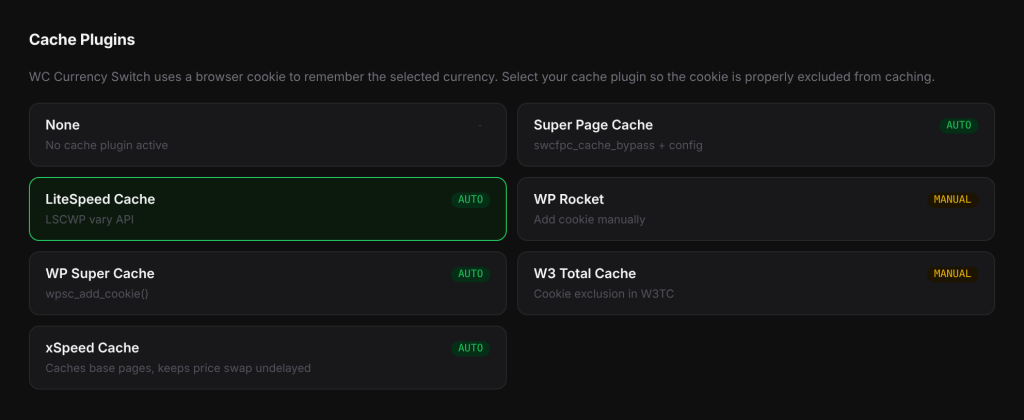
Set it up#
- Go to WooCommerce > Currency Switch > Integrations.
- Under Cache Plugins, click the card for your cache plugin. Pick None if you do not use one.
- Click Save Changes.
- If the card is marked MANUAL, follow the MANUAL STEP REQUIRED box that appears under it.
- Clear your page cache, and your CDN cache if you use one, so old pages without the price data are removed.
A CDN (content delivery network) serves cached copies of your pages from servers near your visitors. See the Bunny CDN and Cloudflare doc for CDN setup.
Where prices are not swapped#
The hidden prices are only added to normal shop pages. They are not added to:
- the cart, checkout and My Account pages, which always show prices worked out by your server for the visitor’s currency;
- emails, feeds and background requests.
On the cart, checkout and My Account pages, picking a new currency always reloads the page, even if you use Instant switching.
Examples#
A cached product page. Your store sells in USD, with EUR and KWD also enabled. A product costs 100.00 USD. The cached page shows $100.00 and carries the EUR and KWD prices hidden beside it. A visitor whose cookie says KWD opens the page and sees the KWD price as soon as the page loads. A visitor whose cookie says EUR sees the EUR price. Your server only built the page once.
Switching currency. With Reload switching (the default), the visitor picks EUR, the cookie is updated and the same page reloads. The reloaded page may come from the cache in USD, and the script shows EUR straight away. With Instant switching (beta), the script swaps the prices without reloading.
Good to know#
- The plugin sends a
Vary: Cookieheader with front-end pages, which tells caches that the page can differ by cookie, and anX-WCCS-Currencyheader with the visitor’s cookie value, which helps when you check what a cache served. - The plugin’s scripts are marked with
data-no-optimize="1"so JavaScript optimisers that respect this mark do not delay them. If an optimiser still delays scripts until the first click, excludewc-currency-switch/assets/js/in its settings. - The hidden prices are only added when at least two currencies are enabled.
- Prices typed as plain text, for example in a page builder pricing table, are not WooCommerce prices and are not converted.
- When exchange rates move, cached pages still hold the old prices. The plugin can clear your caches for you; see Clearing caches when exchange rates change.
If you changed Cookie Name on the General tab, use your cookie name wherever these docs say wccs_currency.
Related docs#
- Cache plugin setup
- Bunny CDN and Cloudflare
- Clearing caches when exchange rates change
- Prices show the wrong currency on a cached page