
Analytics shows amounts in the wrong currency
WooCommerce Analytics adds up order amounts as they are stored. If orders are paid in several currencies, a 10.000 KWD order would count as 10 dollars in a USD store unless it is converted first. WC Currency Switch converts each order’s Analytics figures to your store currency (the currency set in WooCommerce, also called the “base currency”) using the exchange rate saved on that order. If your reports still look wrong, work through the checks below in order.
How it works (in short)#
When an order is placed, the plugin saves its currency and the exchange rate at that moment on the order. Each time WooCommerce writes an order into its Analytics tables, the plugin divides the amounts by that saved rate: total sales, tax, shipping and net totals for the order, the revenue, tax, shipping and coupon amounts for each product, and coupon discounts.
The conversion happens when WooCommerce writes the Analytics rows. Rows written before the conversion was running keep their original amounts until they are rebuilt with the sync tool.
Step-by-step diagnosis#
1. Run the sync tool#
- Check: older orders, or orders whose rate you corrected, may still hold unconverted amounts.
- Where: WooCommerce > Status > Tools, then find WCCS: Sync analytics to base currency and click Run sync.
- What to do: run it, then reload the Analytics page. The tool rebuilds the Analytics rows of every order and refund in a currency other than your store currency, using the rate saved on each order, and clears the Analytics report cache. It is safe to run more than once: each run starts from the order itself, so numbers do not shrink further.
The tool reports what it did:
| Message | Meaning |
|---|---|
| “Synced 12 orders to base currency in WooCommerce Analytics.” | Done. Reload Analytics. |
| “No orders in other currencies found. Nothing to sync.” | Every order is in your store currency, so there is nothing to convert. |
| “WooCommerce Analytics is not available on this site.” | WooCommerce Analytics is turned off or missing. |
2. Check the rate saved on a wrong order#
- Check: the order’s Currency Info box.
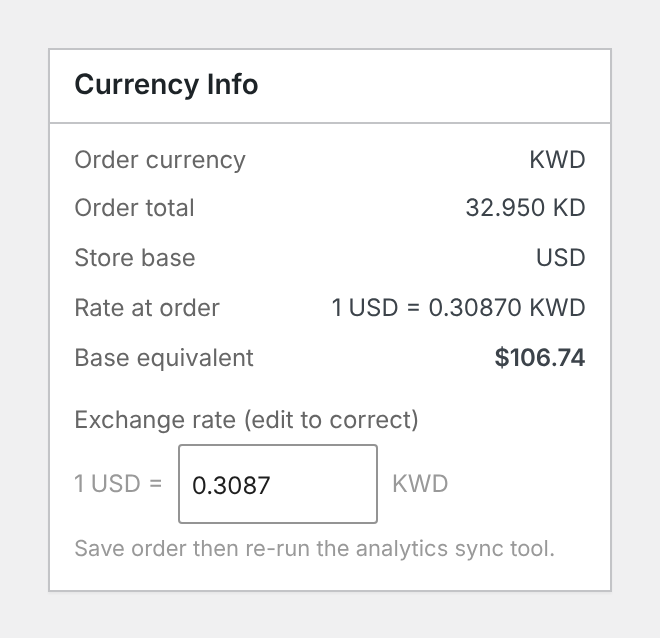
- Where: open the order from WooCommerce > Orders. The box in the sidebar shows Order currency, Order total, Store base, Rate at order and Base equivalent.
- What to do: if the rate is wrong, for example because the rate provider was down when the order was placed, type the right rate in Exchange rate (edit to correct) (written as 1 store currency = X order currency), click Update to save the order, then run the sync tool again.
3. Check orders with no saved rate#
- Check: orders placed before WC Currency Switch was installed have no saved rate. An order whose saved rate is missing or exactly 1 is converted with today’s rate.
- What to do: if you need the historical rate, enter it in Exchange rate (edit to correct) on each order, then run the sync tool. The Rate History on the Rate Provider tab shows past rates, if history was being kept.
4. Check you are viewing as an admin#
- Check: Analytics shows store-currency figures to store managers and administrators. The plugin keeps the WordPress admin and Analytics in the store currency for them, whatever their currency cookie says.
- What to do: nothing, if you are logged in as an admin or shop manager. If another role sees Analytics, test with an admin account to compare.
Example#
Store currency USD. A KWD order of 10.000 KWD was placed with a saved rate of 1 USD = 0.30870 KWD.
- Total sales in Analytics: 10.000 / 0.30870 = 32.39 USD.
- If the rate had been saved wrongly as 0.25, Analytics would show 40.00 USD. Correct the rate to 0.30870, save the order, and run the sync tool to get 32.39 USD.
Good to know#
- A refund is converted with its parent order’s saved rate, so a full refund cancels the order’s revenue in your store currency.
- The order itself stays in the currency the shopper paid in. Only the Analytics figures are converted.
- The saved rate is the rate provider’s market rate at checkout. It does not include the conversion fee or rounding, and it is the market rate even when the currency has a Fixed Exchange Rate on the Pricing tab. If you price a currency with a fixed rate and want Analytics to use it, enter that rate on the order and run the sync tool.
Related docs#
- WooCommerce Analytics in your store currency
- The currency and exchange rate saved on each order
- Rate history, CSV export and update emails
- Order emails and refunds in another currency