
Switcher popup design
When a shopper clicks the switcher button, a popup opens with every currency you sell in. You can change its highlight colour, text sizes, width and search bar so it fits your brand. For example, a store with a blue brand colour can make the selected currency glow blue instead of the default green, and a store selling in 12 currencies can keep the search bar so shoppers find KWD by typing “kw”.
Set it up#
- Go to WooCommerce > Currency Switch > General.
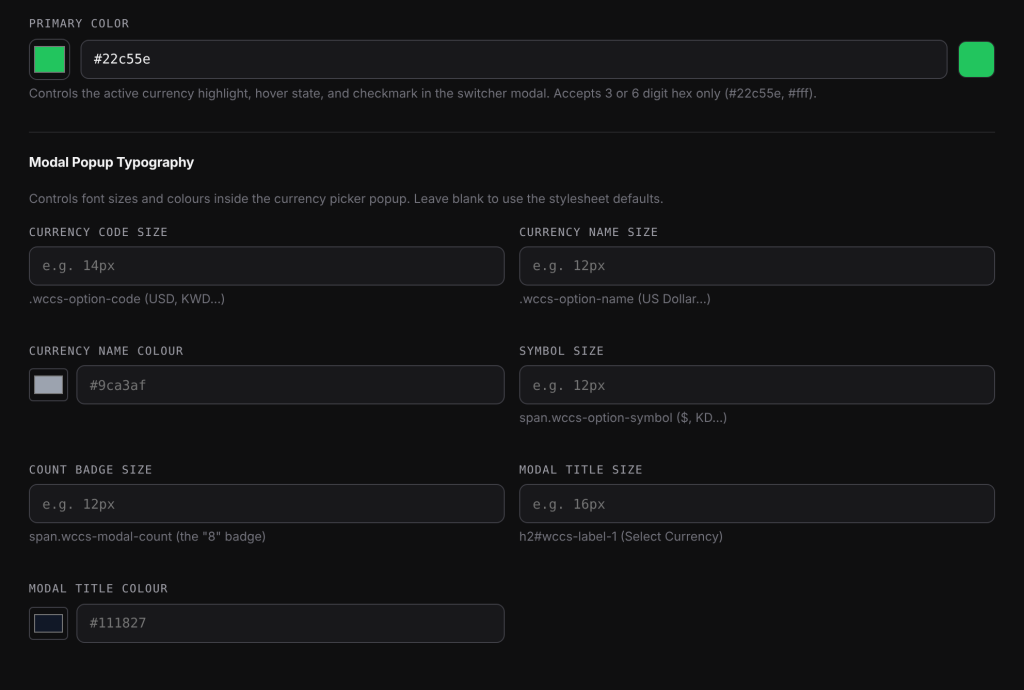
- Set Primary Color at the top of the tab.
- Under Modal Popup Typography, fill in only the sizes and colours you want to change.
- Under Behaviour, choose Show search bar in modal and set Modal Width.
- Click Save Changes, then open the popup on your store to check the result.
Settings explained#
| Setting | Default | What it does |
|---|---|---|
| Primary Color | #22c55e (green) | Colour of the selected currency, the hover state and the check mark in the popup. It also colours the keyboard focus ring. Use a 3 or 6 digit hex code such as #2563eb or #fff. Anything else falls back to the default. |
| Show search bar in modal | On | Adds a live search box at the top of the popup. The settings page recommends it when you have 8 or more currencies. |
| Modal Width | 700px | Width of the popup on desktop. Use a number of pixels, such as 500px. Other values fall back to 700px. The popup is never wider than 92% of the screen. |
Popup text sizes and colours#
Leave a field blank to keep the built-in look. Sizes take a number with px, em, rem or %, for example 14px or 0.9rem. Colours take a hex code. A size in any other form is cleared when you save.
| Field | Example | Changes |
|---|---|---|
| Currency code size | 14px | The codes (USD, KWD) |
| Currency name size | 12px | The names (US Dollar) |
| Currency name colour | #9ca3af | The names |
| Symbol size | 12px | The symbols ($, KD) |
| Count badge size | 12px | The small number next to the title |
| Modal title size | 16px | The “Select Currency” title |
| Modal title colour | #111827 | The title |
These settings apply to every switcher popup on your site. To change the sizes for one switcher only, use the title_size, code_size and name_size shortcode attributes, which win over these settings.
Searching the list#
With the search bar on, the shopper types part of a currency code or name, for example dinar or kwd, and the list filters as they type. If nothing matches, the popup says “No currencies match your search.” The small x in the search box clears it.
On a computer the cursor goes straight into the search box when the popup opens. On phones it does not, so the on-screen keyboard does not cover the list.
Keyboard use#
The popup works fully without a mouse:
- Tab moves between the search box, the currencies and the close button. Focus stays inside the popup while it is open.
- Down arrow and Up arrow move through the currencies. From the search box, the down arrow jumps to the first result.
- Home and End jump to the first and last currency.
- Typing a letter jumps to the next currency whose code starts with it.
- Enter or Space picks the highlighted currency.
- Escape closes the popup and puts focus back on the switcher button.
Screen readers announce the popup as a dialog, read out how many currencies match a search, and announce the switch. The popup also respects the “reduce motion” setting on the visitor’s device and Windows high contrast mode.
On phones#
On screens 520 pixels wide or narrower, the popup opens as a sheet that slides up from the bottom of the screen. It fills the full width, takes up to 82% of the screen height and scrolls if you have many currencies. To fit more on a small screen, the sheet shows each currency’s flag and code in a grid and hides the full names. Modal Width does not apply here.
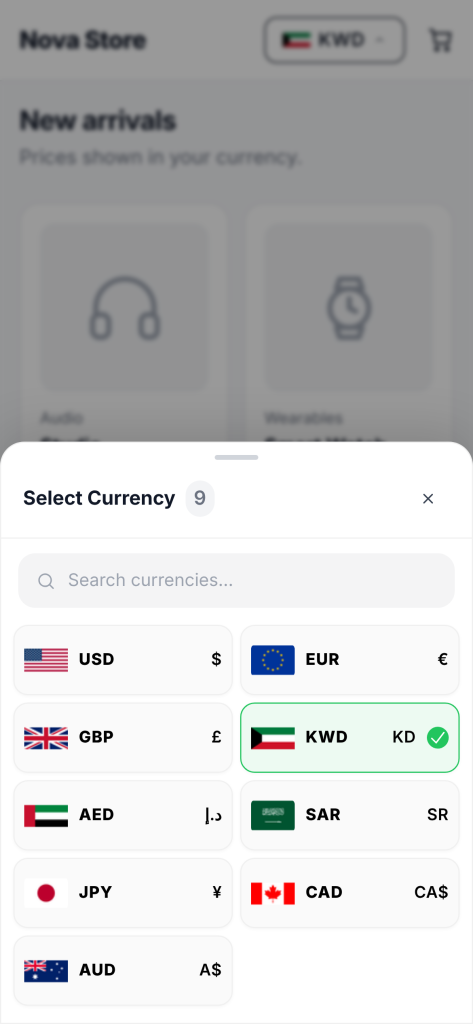
Shoppers close it with the x button or by tapping the dimmed page behind it.
Right-to-left (RTL) languages#
No setup is needed. When your page’s <html> element has dir="rtl", as it does for languages such as Arabic, Hebrew and Persian, the switcher button, the popup and the currency converter mirror their layout. Currency codes and symbols keep their left-to-right order so they stay readable.
Good to know#
- The popup lists only the currencies enabled on the Currencies tab. The badge next to the title shows how many there are.
- The popup always opens above the page, even when the button sits inside a sliding mobile menu.
- The button’s own colours and border are set separately, in Switcher Button Defaults or with shortcode attributes.
Related docs#
- Adding the currency switcher
- Shortcode generator and styling options
- Reload vs Instant switching