
Setting the default currency
The default currency is your store currency: the currency you enter product prices in, and the one every other currency is converted from. Some settings call it the “base currency” (for example Settle orders in base currency); it is the same thing. If your shop is based in the US and you type your prices in dollars, your default currency is USD, and a shopper who picks EUR sees those dollar prices converted to euros.
How it works#
When the plugin is first activated, it takes your existing WooCommerce store currency as its default currency. From then on the two always match:
- When you save a new Default Currency in the plugin, it also sets the WooCommerce store currency. It copies that currency’s Symbol Position and Decimal Places (from the Pricing tab) into WooCommerce’s own currency options too.
- The plugin removes the Currency, Currency position and Number of decimals fields from WooCommerce > Settings > General and shows a link to its own settings instead, so the currency is managed in one place.
- If the WooCommerce store currency is changed some other way (for example by another plugin), the plugin follows that change and adds the currency to your enabled list.
Visitors see the default currency when no other rule picks a currency for them: they have not chosen one in the switcher, no language rule applies, and auto-detect is off or finds no enabled currency for their country. In the admin area, product prices you edit are always store-currency prices.
Set it up#
- Go to WooCommerce > Currency Switch > General.
- Choose your currency in the Default Currency dropdown. The list shows every currency the plugin knows, by code and name.
- Click Save Changes.
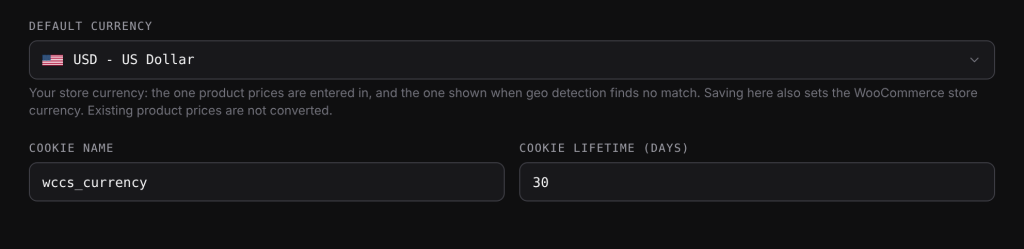
If the currency you pick is not in your enabled list yet, it is added automatically. On the Currencies tab it shows a Store currency label and cannot be removed.
Changing the default currency does not convert your existing product prices. If your products are priced at 20 (meant as USD) and you switch the default currency to EUR, they become 20 EUR. Choose the default currency once, before you enter prices.
What changes with the default currency#
| Where | What happens |
|---|---|
| Pricing tab | The store currency’s panel hides Conversion Fee %, Rounding Type, Rounding Target and the fixed exchange rate, because it is never converted. |
| Fixed exchange rates | Each one is read as “1 store currency = X”. The field label shows this, for example Fixed Exchange Rate (1 USD = ? EUR). |
| Fixed product prices | The Currency Fixed Prices box lists every enabled currency except the store currency. |
| Rate History | Each row shows what 1 unit of the store currency was worth in your other currencies. |
Examples#
A UK shop. Your WooCommerce store currency was already GBP when you installed the plugin, so the default currency is GBP straight away. You enter prices in pounds, and EUR and USD shoppers see converted prices.
Changing your mind before launch. You set up the plugin with USD, then decide to sell in CAD before adding any products. You pick CAD – Canadian Dollar, save, and enter your prices in Canadian dollars. USD stays in your enabled list as an extra currency, and you can remove it if you do not need it.
Good to know#
- After changing the default currency, check any Fixed Exchange Rate values on the Pricing tab. They were entered against the old store currency but are now read against the new one.
- The default currency is also the fallback whenever geo detection cannot decide. To send visitors from particular countries to another currency, use Location Rules instead of changing the default currency.
- On the store’s front end the number format (separators, decimals, symbol position) of every currency, including the store currency, comes from the Pricing tab.
Related docs#
- Adding, removing and ordering currencies
- How first-visit currency detection works
- Fixed exchange rates
- Number format and currency symbols