
Rate history, CSV export and update emails
Rate history is a log of the exchange rates your store has used. Every time new rates are fetched, the plugin writes down what one unit of your store currency was worth in each of your other currencies. This answers questions like “which EUR rate were we using on the 14th?” when you check an invoice, reconcile your accounts or explain a price to a customer. You can download the whole log as a CSV file (a spreadsheet file) and get an email whenever someone refreshes rates by hand.
How it works#
A new row is added each time rates are stored:
- Scheduled: the cache time (Rate Cache TTL) ran out and the next page view fetched new rates.
- Manual: someone clicked Force Refresh.
Each row records the time, whether it was scheduled or manual, the provider, and the rate for every enabled currency except your store currency. Rows are only added when a fetch succeeds. Old rows are removed when they pass the age you choose in Keep history for.
Each order also keeps its own exchange rate, so you do not need the history to check a single order.
Set it up#
- Go to WooCommerce > Currency Switch > Rate Provider and scroll to Rate History.
- Choose how long to keep rows in Keep history for.
- Click Save Changes.
The first row appears at the next refresh. Click Force Refresh if you do not want to wait.
Reading the table#
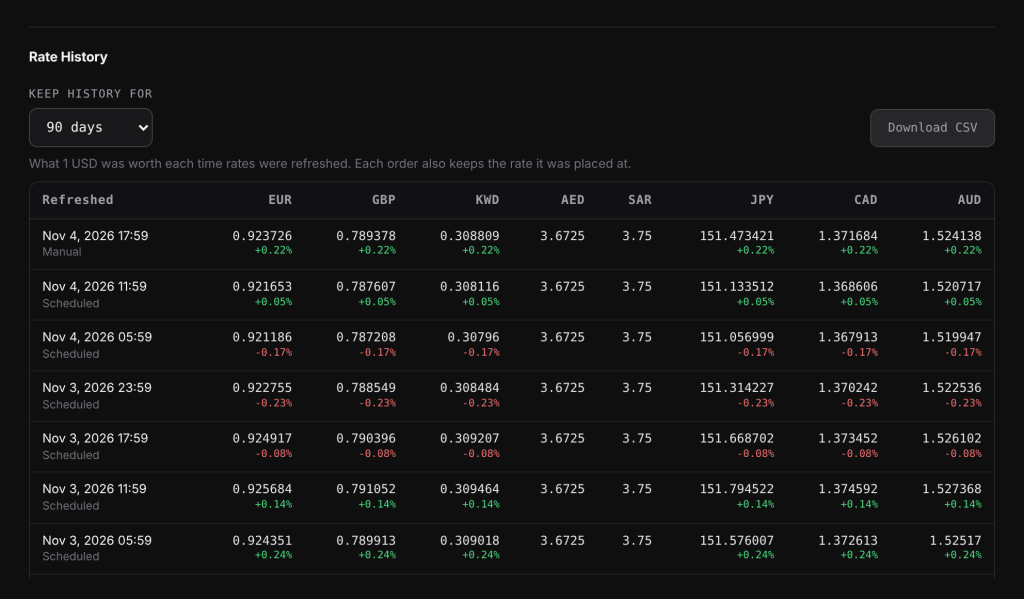
The table shows the latest 20 rows, newest first, with one column per currency:
- Refreshed: the date and time (in your site’s time zone), with a Scheduled or Manual label.
- The rate: what 1 unit of your store currency was worth, for example
0.92under EUR in a USD store. - The change: a green or red percentage when the rate moved by 0.01% or more since the row before.
- fixed: shown with your rate when that currency uses a fixed exchange rate. The number in the column is still the live market rate, so you can compare the two.
- A dash (-): no rate was received for that currency in that refresh.
If more than 20 rows are stored, a line under the table says how many, and the CSV has all of them.
Settings explained#
| Setting | Options | Default |
|---|---|---|
| Keep history for | Off, 30 days, 90 days, 180 days, 1 year | 90 days |
| Email me when rates are manually refreshed | On or off | Off |
| Notification Email | The address that receives the emails | Your site admin email |
Download the CSV#
Click Download CSV next to Keep history for. The button appears once there is at least one row. The file is named like exchange-rate-history-2026-11-04.csv and contains every stored row, oldest first, with these columns:
date_utc: the time of the refresh in UTC (universal time, not your site’s time zone).source:scheduledormanual.provider: the provider’s short name, such asfrankfurter.base: your store currency.- One column per currency code, in alphabetical order.
fixed_rates: any fixed rates in use at the time, such asEUR=0.9.
Only users who can manage WooCommerce can download the file.
Rate update emails#
Turn on Email me when rates are manually refreshed under Rate Update Notifications to get an email each time someone clicks Force Refresh and it succeeds. Scheduled refreshes do not send emails, and a failed refresh sends nothing.
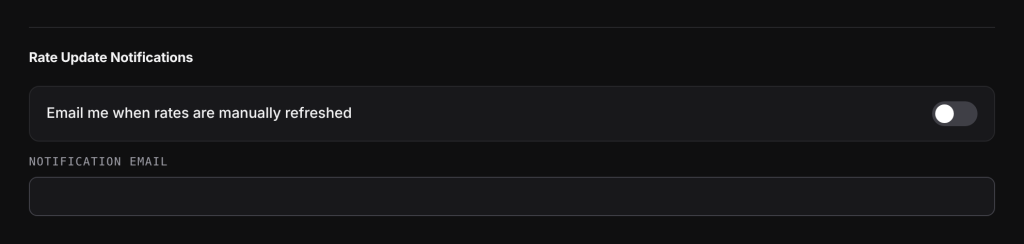
The email goes to Notification Email, or to the site admin email when that field is empty. Its subject is “[Your site name] Exchange rates have been updated”, and it lists the provider, how many currencies were updated, the time, and sample rates against USD for EUR, GBP, JPY, CAD, AUD, CHF, CNY and INR (those the provider returned). It is sent with WordPress’s normal mail function, so your site must be able to send email.
Examples#
Checking an old rate. A customer asks why a $50.00 product cost €46.00 last month. You download the CSV, find the rows around that date and see EUR at 0.92 against your USD store currency: 50.00 × 0.92 = 46.00.
How many rows to expect. With the default 6-hour cache and 90 days of history, you build up about 360 rows if your store gets visitors around the clock (4 refreshes a day × 90 days).
Good to know#
- Choosing Off stops new rows from being recorded. Rows already stored stay in the table and in the CSV.
- A shorter Keep history for takes effect at the next refresh, when older rows are removed.
- The history holds at most 10,000 rows, whatever the setting.
- Rows only include currencies that were enabled at the time of the refresh.
Related docs#
- Choosing an exchange rate provider
- Fixed exchange rates
- The currency and exchange rate saved on each order
- Clearing caches when exchange rates change