
Location Rules: pick the currency for a country
WC Currency Switch has a built-in map that knows the usual currency of each country: Kuwait to KWD, Germany to EUR, United Kingdom to GBP and so on. Location Rules let you change that for any country. Use them when the usual currency is not the one you want to sell in. For example, you can show USD to visitors from Lebanon instead of LBP. Or, if you do not sell in Swiss francs, you can show EUR to visitors from Switzerland.
How it works#
When a new visitor arrives and geo detection finds their country, the plugin looks for a currency in this order:
- Your Location Rules for that country.
- The built-in country map.
- The default currency, if neither gives an enabled currency.
Each country can have one rule. A rule says “visitors from this country see this currency”.
Location Rules only decide the currency when there is no currency cookie yet, which is on the first visit. A currency the visitor picks in the switcher is saved in the cookie and always wins over your rules.
The same rules are also used when you let the checkout country change the currency (see Change currency by billing or shipping country).
Set it up#
Add one rule#
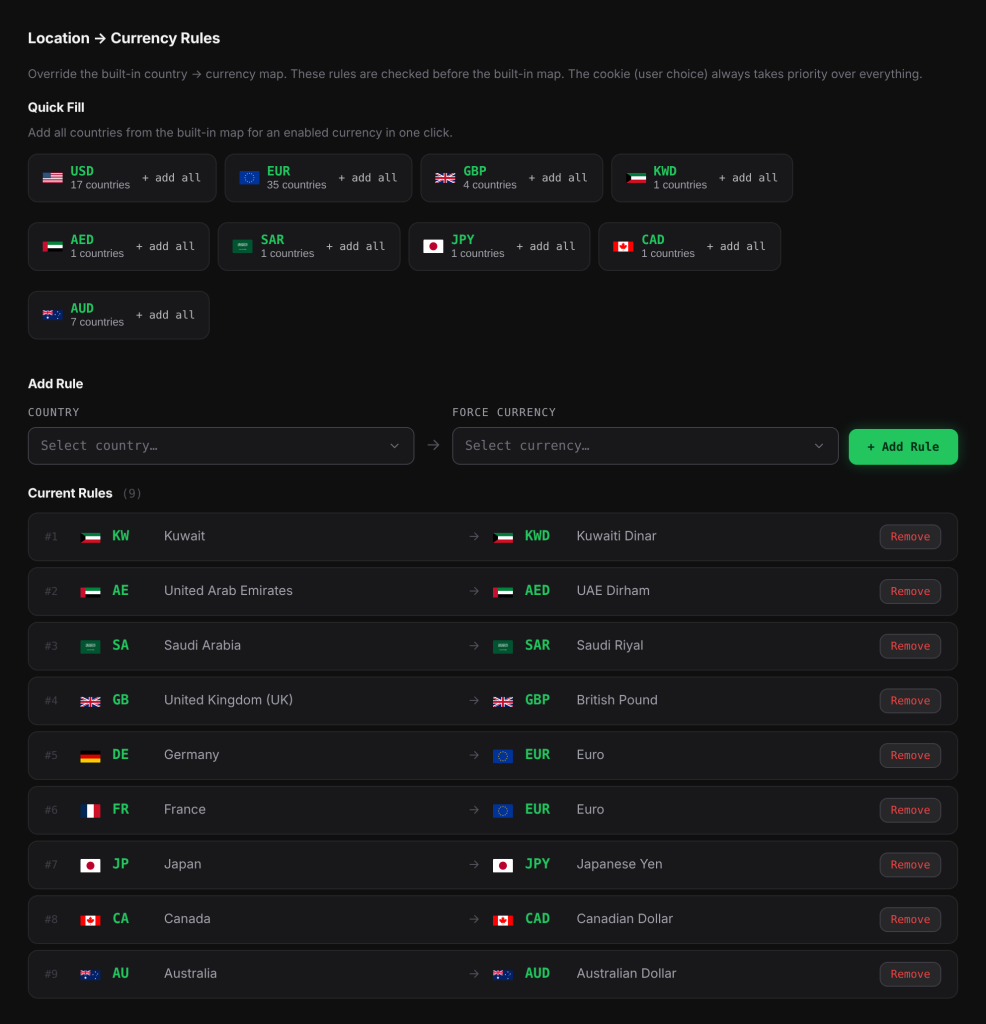
- Go to WooCommerce > Currency Switch > Location Rules.
- Under Add Rule, choose a Country.
- Choose a Force Currency.
- Click + Add Rule. The rule appears under Current Rules.
- Repeat for other countries.
- Click Save Changes.
Adding a rule for a country that already has one replaces the old rule.
Remove a rule#
Click Remove next to the rule under Current Rules, then click Save Changes.
Quick Fill#
Quick Fill shows one button for each enabled currency, with the number of countries the built-in map gives that currency. Click + add all on a button to add a rule for every one of those countries in one click.
For example, the EUR button adds rules for the 35 countries and territories that the built-in map gives EUR, from Austria to Vatican City. You can then change or remove single countries.
Quick Fill replaces any existing rule for the countries it adds. Remember to click Save Changes afterwards.
Quick Fill only copies the built-in map, so on its own it does not change what visitors see. It gives you a ready-made list to edit, for example to switch a few of those countries to another currency.
Settings explained#
| Field | What it does |
|---|---|
| Country | The visitor’s country. Every country WooCommerce knows is listed. |
| Force Currency | The currency visitors from that country should see. |
| + Add Rule | Adds the rule to the list below. |
| Quick Fill | Adds rules for all countries the built-in map gives one enabled currency. |
| Current Rules | The rules you have, numbered, with a Remove button each. |
There are no rules by default.
Examples#
Show USD in Lebanon. Add the rule Lebanon to USD. A first-time visitor from Lebanon now sees USD, not LBP. Make sure USD is enabled.
Sell in EUR to Switzerland and Denmark. You only sell in USD, EUR and GBP. Visitors from Switzerland (CHF) and Denmark (DKK) would get your default currency, USD, because CHF and DKK are not enabled. Add the rules Switzerland to EUR and Denmark to EUR so they see EUR instead.
Gulf visitors in one currency. You enabled KWD but not AED, SAR or QAR. Add rules United Arab Emirates, Saudi Arabia and Qatar to KWD if you want those visitors in KWD rather than the default currency.
Good to know#
- The rule’s currency must be enabled. The Force Currency list shows every currency, not only the enabled ones. If a rule points to a currency that is not enabled on the Currencies tab, visitors from that country get the default currency. The plugin does not fall back to the built-in map in that case.
- Existing visitors keep their currency. A visitor who already has the cookie is not affected by a new rule. Test in a private browser window.
- Language rules come first. The Language → Currency Rules section further down this tab is for Polylang and TranslatePress. A language rule is used before geo detection, and so before your Location Rules. See Currency by language (Polylang and TranslatePress).
Related docs#
- How first-visit currency detection works
- Geo detection sources and the CDN fallback
- Change currency by billing or shipping country
- Geo detection picks the wrong currency