
Payment methods per currency
Not every payment method can take every currency. PayPal, for example, does not accept KWD. If a shopper paying in KWD picks PayPal, the payment fails. The Payments tab lets you choose which payment methods show for each currency, so shoppers only see the ones that can actually take the currency they are paying in.
How it works#
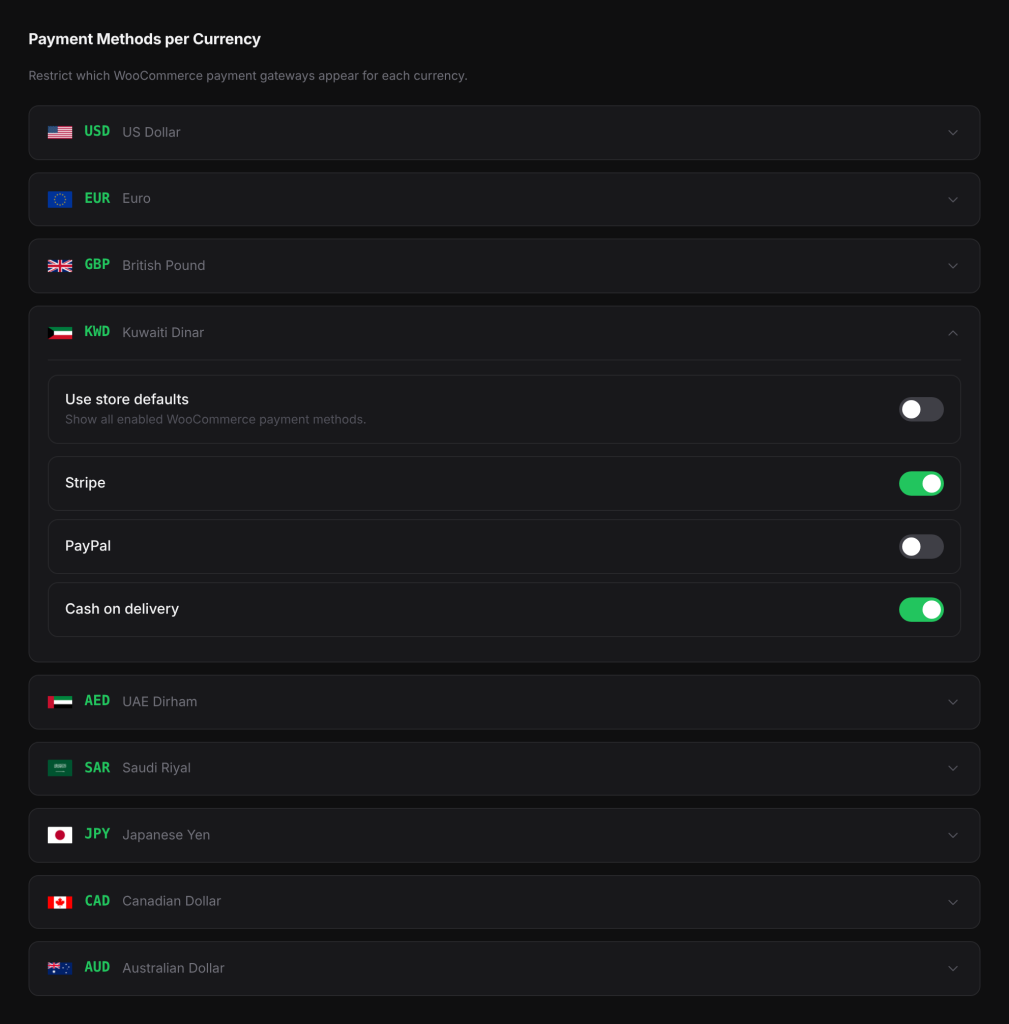
Each enabled currency has its own panel on the Payments tab. For each currency you either show all your payment methods (the default), or pick them one by one.
At checkout, the plugin looks at the currency the shopper is paying in and hides the payment methods you turned off for that currency. Nothing changes in your WooCommerce payment settings: the methods stay set up, they are just not offered in that currency.
This tab can only hide payment methods. It never shows a method that is disabled in WooCommerce > Settings > Payments.
Set it up#
- Go to WooCommerce > Currency Switch > Payments.
- Click a currency to open its panel.
- Turn off Use store defaults.
- Below it, every WooCommerce payment method is listed by its title, each with its own toggle. Turn off the ones that should not show for this currency.
- Repeat for other currencies.
- Click Save Changes.
- Test: switch to that currency in your store, add a product to the cart and open the checkout.
Settings explained#
| Setting | What it does | Default |
|---|---|---|
| Use store defaults | Shows all enabled WooCommerce payment methods for this currency. Turn it off to choose methods one by one. | On |
| One toggle per payment method | Shows or hides that method for this currency. Only used when Use store defaults is off. | On |
Examples#
Hide PayPal for KWD. You sell in USD, EUR and KWD, with Stripe and PayPal Payments. Open the KWD panel, turn off Use store defaults, then turn off PayPal. Shoppers paying in KWD now see only Stripe. Shoppers in USD and EUR still see both.
Bank transfer in your home currency only. Your bank account is in EUR. Open each other currency’s panel, turn off Use store defaults and turn off direct bank transfer. Bank transfer then only shows to shoppers paying in EUR.
Good to know#
- New payment methods show by default. A payment method you add later is shown for every currency until you turn it off for that currency. This way a currency never ends up with no way to pay.
- The checkout currency decides. With Settle orders in base currency on, everyone pays in your store currency, so only the panel for your store currency matters at checkout.
- Changing country at checkout. If you use Change currency follow and the new currency has different payment methods, the payment section of the checkout is refreshed to show the right ones.
- Admin screens are not affected. The filtering only applies to shoppers on your store.
- Check with your provider. Whether a payment provider accepts a currency is set by the provider and your account with them. See Stripe, PayPal and other payment gateways.
If a payment method is missing at checkout, first check this tab for the currency the shopper is paying in. See A payment method is missing at checkout.
Related docs#
- Stripe, PayPal and other payment gateways
- Checkout currency options
- A payment method is missing at checkout
- Adding, removing and ordering currencies