
Page builders and themes
Page builders and themes design your shop pages, but the prices on those pages still come from WooCommerce. WC Currency Switch changes prices inside WooCommerce itself, so any builder element that shows a WooCommerce price shows it in the shopper’s currency with no extra setup. For example, a shopper in Kuwait who opens an Elementor product page sees the price in KWD, and a shopper in Germany sees the same element in EUR.
How it works#
Builders show product prices by asking WooCommerce for them (the product price, the cart totals, the mini cart). The plugin converts the price at that point, so the builder never needs to know about currencies. Text that you type yourself into a builder, such as “$49” in a pricing table, is plain text and is never converted.
On cached pages and pages where products load later (load more buttons, query loops, quick view), the plugin’s script swaps every WooCommerce price to the visitor’s currency as soon as it appears on the page.
You can see which builders and themes the plugin has detected on WooCommerce > Currency Switch > Integrations, in the Page Builders & Themes group. A detected one shows ACTIVE (NATIVE), which means it works through WooCommerce with no special code.
Supported builders and themes#
Bricks#
- What works: Bricks WooCommerce elements use WooCommerce’s standard price and currency symbol functions, so product prices convert. The mini cart updates through WooCommerce cart fragments (the small pieces of the page WooCommerce refreshes after a cart change).
- Add the switcher: add a Shortcode element with
[wccs_switcher], or add the switcher to a Bricks Nav Menu element (see “Menus” below). - Limit: none known.
Elementor and Elementor Pro#
- What works: WooCommerce price widgets read the product price through WooCommerce. The Integrations tab notes it was verified with Elementor Pro 4.0.3 for the Product Price dynamic tag and loop widgets.
- Add the switcher: add a Shortcode widget with
[wccs_switcher], or use the Nav Menu tab for the Nav Menu widget. - Limit: none known.
Divi (theme or Divi Builder plugin)#
- What works: Divi’s WooCommerce modules (Price, Cart Totals, Shop, Upsells, Cross-sells, Related Products) use WooCommerce’s own templates, so they convert.
- Add the switcher: add a Code or Text module with
[wccs_switcher], or use the Nav Menu tab for the Divi menu. - Limits: the Pricing Tables module shows the amounts and symbols you type, so it is not converted. Inside the Visual Builder, Divi shows dummy preview prices; check the real page instead.
Breakdance#
- What works: product elements, dynamic data price fields (regular and sale price) and conditions that check the product price or currency symbol all use converted values.
- Add the switcher: add a Shortcode element with
[wccs_switcher]. - Limit: the Pricing Table element shows the text you type, so it is not converted.
Kapee theme#
- What works: product prices, the mini cart and the theme’s own price scripts (symbol, decimals and separators) follow the shopper’s currency.
- Add the switcher: Kapee has a header slot meant for a currency switcher plugin, but it does not switch currencies itself. Add
[wccs_switcher]to a header area, or use the Nav Menu tab. - Limit: none known.
Menus in builders#
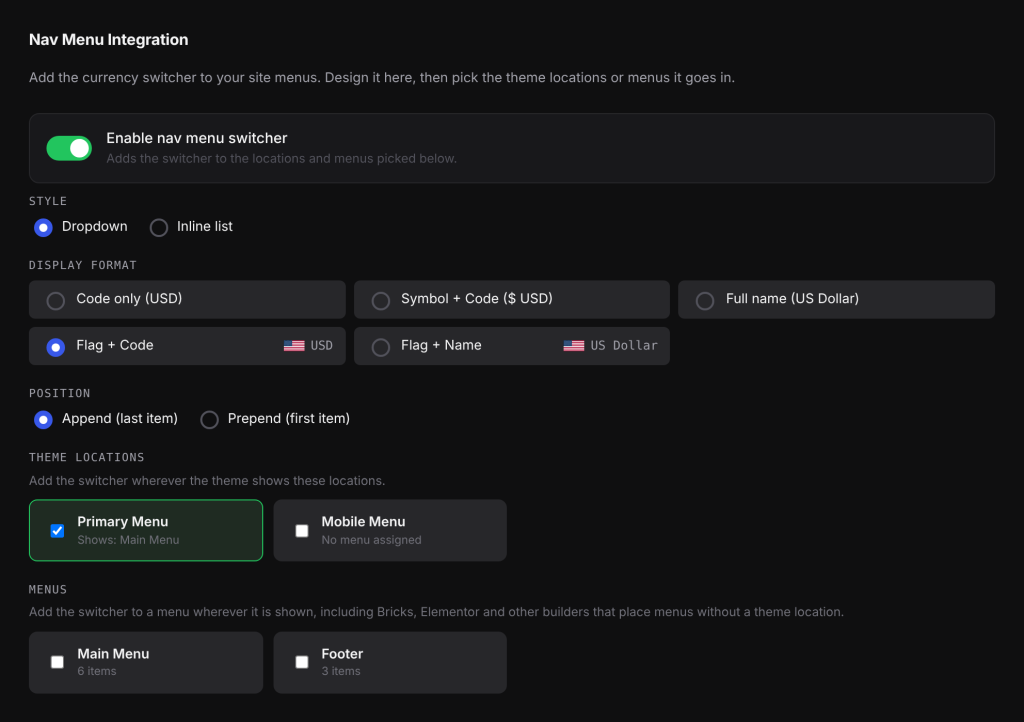
Builders often print a menu by its ID, without a WordPress theme location. On WooCommerce > Currency Switch > Nav Menu, choose the menu under Menus rather than Theme locations. The Menus option adds the switcher wherever that menu is shown, including Bricks, Elementor and other builders.
How to test#
- Open a product page, a shop page and the cart in a private browser window, so you start with no currency cookie.
- Switch currency with the switcher. Every WooCommerce price, including the mini cart, should change.
- Check any element where you typed a price by hand. It will still show what you typed, so change it to a WooCommerce price element if it needs to convert.
- If your builder has its own cache or a CSS/JS optimiser, clear it after changing switcher settings.
To jump straight to a currency while testing, add ?wccs_cur=EUR (or any enabled code) to the page URL.
Related docs#
- Adding the currency switcher
- Adding the switcher to your menus
- Shortcode generator and styling options
- How WC Currency Switch works with page caching