
Adding the switcher to your menus
Many shoppers look for the currency choice in the main menu, next to links like Shop and Contact. The Nav Menu tab adds a currency switcher straight into your WordPress menus, with no shortcode and no theme editing. For example, a store selling in KWD, USD and EUR can add a “KWD” item to the end of its main menu that opens a small list of the other currencies.
How it works#
The plugin adds the switcher as one or more extra items each time WordPress shows a menu you picked. You can pick menus in two ways:
- By theme location: the slots your theme defines, such as “Primary” or “Footer”. The switcher appears wherever the theme shows that slot.
- By menu: a specific menu, wherever it is shown. Page builders such as Bricks and Elementor often show menus without a theme location, so use this option for them.
The menu switcher is a list of links, not the popup. When a shopper clicks a currency, it switches the same way as the shortcode, using your Switching Mode (Reload, or Instant in beta).
Set it up#
- Go to WooCommerce > Currency Switch > Nav Menu.
- Turn on Enable nav menu switcher.
- Under Style, choose Dropdown or Inline list.
- Under Display format, choose how each currency is labelled.
- Under Position, choose Append (last item) or Prepend (first item).
- Under Theme locations, tick the locations to add it to. Each one shows which menu it holds, or “No menu assigned”.
- Under Menus, tick any specific menus to add it to. Each one shows how many items it has.
- Click Save Changes and check your menu on the store.
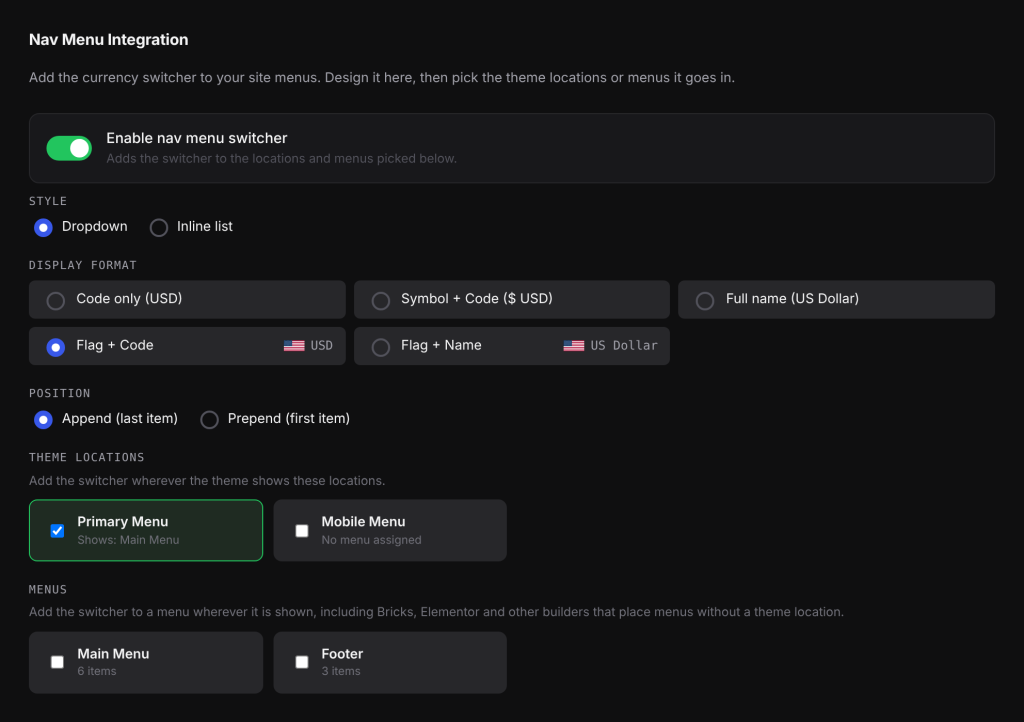
You must tick at least one theme location or menu. If none is ticked, nothing is added. If you have no menus yet, the tab says so: create one under Appearance > Menus first. The Theme locations list only appears when your theme defines menu locations.
Settings explained#
| Setting | Options | Default |
|---|---|---|
| Enable nav menu switcher | On or off | Off |
| Style | Dropdown: one menu item showing the current currency, which opens a sub-menu with all your currencies. Inline list: every currency as its own menu item, side by side. | Dropdown |
| Display format | Code only (USD), Symbol + Code ($ USD), Full name (US Dollar), Flag + Code, Flag + Name | Code only (USD) |
| Position | Append (last item) or Prepend (first item) of the menu | Append (last item) |
| Theme locations | Any locations your theme registers | None |
| Menus | Any menus on your site | None |
Examples#
A dropdown at the end of the main menu. Choose Dropdown, Flag + Code and Append (last item), and tick your theme’s main menu location. A Kuwait shopper sees the Kuwaiti flag and “KWD” as the last menu item. Clicking it opens a sub-menu listing KWD, USD and EUR, with KWD marked as current.
An inline list in a Bricks header. Your Bricks header uses a Nav Menu element that shows the menu “Header menu”. Choose Inline list and Code only (USD), and tick “Header menu” under Menus. The menu ends with three items: KWD, USD and EUR, with the current one marked.
Good to know#
- The dropdown uses the same sub-menu classes as your theme’s other menus, so it usually looks like your other dropdowns.
- The dropdown opens on click or tap. Clicking elsewhere, pressing Escape or tabbing away closes it, and it closes after a pick.
- On cached pages the menu still shows each visitor’s own currency, because the label is updated in the browser from the currency cookie.
- Switcher Button Defaults and shortcode styling do not apply to the menu switcher. To restyle it with your own CSS, target the classes
wccs-nav-menu-item(the menu item) andwccs-nav-active(the current currency). - The menu switcher lists the same currencies as the popup: the ones enabled on the Currencies tab.
Related docs#
- Adding the currency switcher
- Reload vs Instant switching
- Page builders and themes