
Geo detection picks the wrong currency
On their first visit, shoppers should see the currency of their country: KWD for a visitor in Kuwait, EUR for a visitor in Germany. If someone sees a different currency, one of the checks below will show why. Work through them in order; each one says what to look at, where, and what to do.
How it works (in short)#
When a visitor arrives with no currency cookie, the plugin picks a currency in this order:
- With WPML and WooCommerce Multilingual active, WooCommerce Multilingual’s currency.
- A language rule (Polylang or TranslatePress), if the page’s language has one.
- Geo detection: the plugin finds the visitor’s country, then the currency from your Location Rules, then from its built-in country map.
- The Default Currency on the General tab.
The chosen currency is saved in the wccs_currency cookie. From then on the cookie decides, and detection does not run again.
Step-by-step diagnosis#
1. Test as a real first-time visitor#
- Check: detection only runs when there is no currency cookie. An earlier visit or switcher choice keeps its currency for the cookie lifetime (30 days by default).
- Where: open a new private browser window. The browser also remembers for the rest of that window that it already ran a background lookup, so close all private windows between tests.
- What to do: if the private window shows the right currency, the visitor simply has an older cookie. They can change currency with the switcher.
2. Check auto-detect is on#
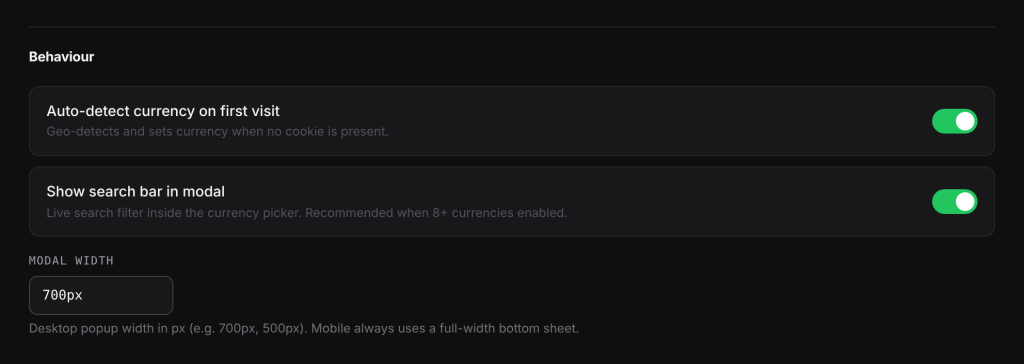
- Check: Auto-detect currency on first visit.
- Where: WooCommerce > Currency Switch > General, under Behaviour.
- What to do: turn it on and save. With it off, every first visit gets the default currency.
3. See which country was detected#
- Check: the country the plugin found for this visitor.
- Where: in the private window, open the developer tools (right-click, Inspect), Network tab, then reload. Find the request to
admin-ajax.php. Its response looks like{"success":true,"data":{"currency":"KWD","country":"KW"}}. - What to do: if the country is wrong or empty, go to step 4. If the country is right but the currency is not, go to step 6. (If the page was rendered fresh with a country already known, the plugin sets the currency without this request.)
4. Check the detection source#
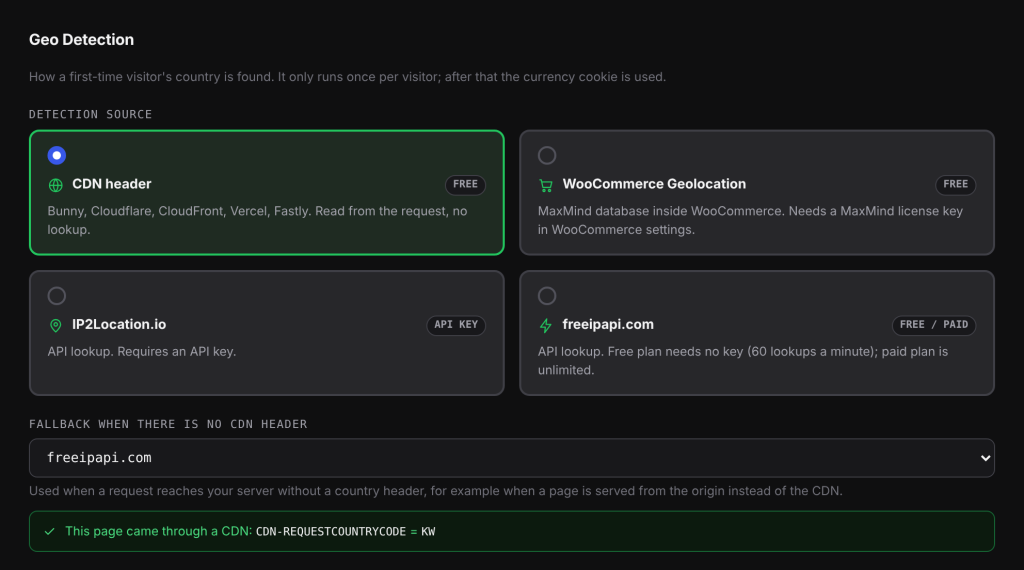
- Check: Detection source and Fallback when there is no CDN header.
- Where: WooCommerce > Currency Switch > Geo Detection.
- What to do:
- CDN header (the default) reads the country your CDN adds to each request (Bunny, Cloudflare, CloudFront, Vercel, Fastly). The tab shows “This page came through a CDN” with the header and value when one is present. If your admin bypasses the CDN, the tab says no header was found on the admin page; check a storefront page instead.
- Requests that reach your server without a CDN header use the fallback. The default fallback is WooCommerce Geolocation, which needs a MaxMind license key in WooCommerce’s settings. Without it, set another fallback or accept the default currency.
- IP2Location.io needs an API key.
5. Check the visitor’s IP address reaches WordPress#
- Check: IP lookups use the visitor’s address from the
X-Bunny-ClientIP,CF-Connecting-IP,X-Real-IPorX-Forwarded-Forheaders, in that order, then the server’s own record of the connection. Behind a proxy or load balancer that passes none of these, the plugin sees the proxy’s address and finds the proxy’s country. - What to do: ask your host to pass the real visitor IP in one of these headers, or use the CDN header source.
6. Check the currency for that country#
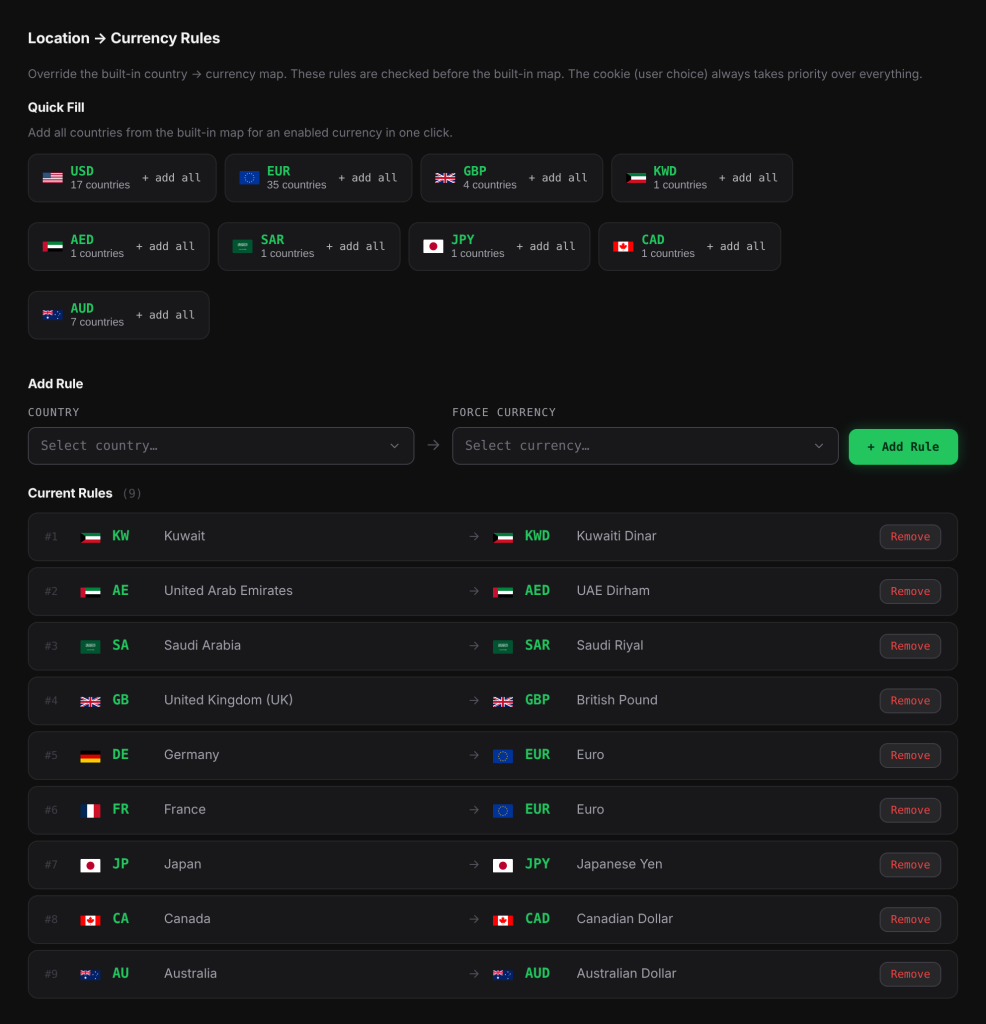
- Check: your Location Rules, then whether the currency is enabled.
- Where: Location Rules tab and Currencies tab.
- What to do: a Location Rule for the country wins over the built-in map. If the country’s currency is not enabled, the visitor gets the default currency: enable it, or add a Location Rule that sends the country to an enabled currency.
7. Check for a language rule#
- Check: with Polylang or TranslatePress, a language rule sets the currency before geo detection, and geo detection does not save a cookie on that page.
- Where: Location Rules tab, Language → Currency Rules.
- What to do: remove the rule for that language if you want geo detection to decide.
8. Check lookup limits#
- Check: with freeipapi.com on the free plan, lookups are limited to 60 a minute for your whole site. Past that, detection pauses for a minute and visitors get the default currency.
- What to do: use the CDN header source, or a paid plan.
9. Check a cached page did not save someone else’s currency#
- Check: in View page source, search for
embeddedGeo. It should readvar embeddedGeo='';on a cached page. - What to do: if it holds a code, the page was cached from a first-time visitor’s view and new visitors inherit their currency. Clear the page cache and set up your cache plugin on the Integrations tab.
Good to know#
- VPNs and company networks often appear in another country. The visitor’s real location cannot be seen.
- Successful IP lookups are cached per IP address for one hour.
- The cookie, meaning the visitor’s own choice, always wins over Location Rules and detection.
Related docs#
- How first-visit currency detection works
- Geo detection sources and the CDN fallback
- Location Rules: pick the currency for a country
- Prices show the wrong currency on a cached page