
Prices show the wrong currency on a cached page
A shopper chose EUR, but a page shows prices in USD, or a page shows EUR for a moment and then the wrong currency. On a site with page caching this almost always comes down to one of a few causes. Work through the checks below in order; each one says what to look at, where, and what to do.
How it works (in short)#
A page cache (a stored copy of a page served to many visitors) cannot build a page for each visitor’s currency. So WC Currency Switch prints every price in every enabled currency, hidden next to the visible price. A small script, switcher.js, reads the visitor’s currency cookie (wccs_currency) and shows the matching price as the page loads. If the cookie, the hidden prices or the script is missing, the cached page shows whatever currency it was saved in.
Step-by-step diagnosis#
1. Confirm the visitor really has the currency#
- Check: the currency cookie.
- Where: in the browser, open the developer tools (right-click, Inspect), then Application (Chrome, Edge) or Storage (Firefox), Cookies, your site. Look for
wccs_currency(or the name set under General > Cookie Name). - What to do: if it is missing or empty, the switch did not stick: go to step 4. If it holds a code that is no longer enabled, the plugin ignores it; pick a currency again in the switcher.
2. Check the price carries the hidden data#
- Check: the price markup.
- Where: right-click the wrong price, Inspect. Look for a
<span class="wccs-price">around the price with a hidden<span class="wccs-all" data-wccs-prices="...">inside it. - What to do: if it is missing, see “Prices that are never swapped” below. If it is there, go to step 3.
3. Check the script runs straight away#
- Check: whether
switcher.jsis delayed. “Delay JS”, “Load JS on user interaction” and similar optimiser options hold scripts back until the first click or scroll, so the swap happens late or not at all. - Where: in the developer tools Console, type
typeof wccs.applyCurrencyand press Enter."function"means the script has run. - What to do: exclude
wc-currency-switch/assets/js/from delay, defer and combine in your optimiser. The plugin marks its scripts withdata-no-optimize, which xSpeed, LiteSpeed Cache, Autoptimize and other optimisers that honour that attribute already respect. With xSpeed Cache the plugin also adds its scripts to xSpeed’s exclusions automatically.
4. Check a consent banner is not blocking the cookie#
- Check: a cookie consent banner can block
wccs_currencyuntil the visitor accepts, so every page forgets the choice. - Where: WooCommerce > Currency Switch > Integrations > Cookie Consent Banners.
- What to do: Must Have Cookie is handled automatically. For other banners (Complianz, CookieYes, GDPR Cookie Consent, Cookiebot and similar), mark
wccs_currencyas a functional or necessary cookie in the banner’s settings.
5. Check your cache plugin is set up#
- Check: the cache plugin picked under Integrations > Cache Plugins.
- Where: WooCommerce > Currency Switch > Integrations.
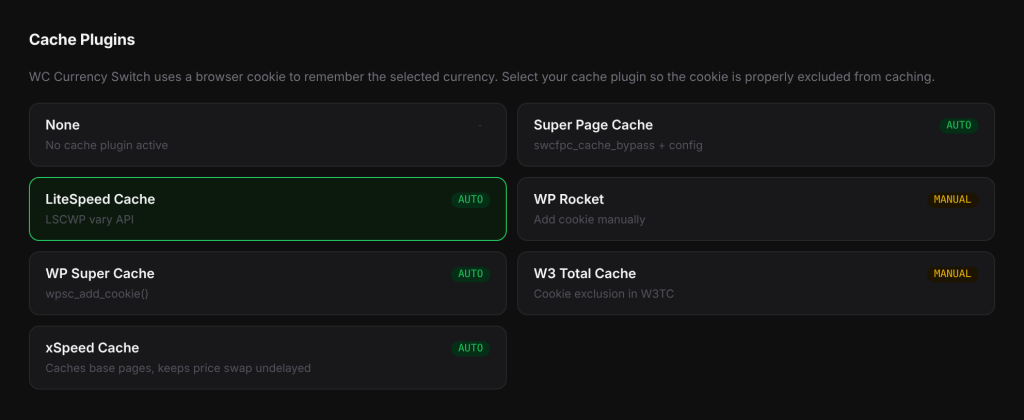
- What to do: select your cache plugin and save. Super Page Cache, LiteSpeed Cache, WP Super Cache and xSpeed Cache are set up automatically. WP Rocket and W3 Total Cache need one manual step, which the tab shows when you select them (add the cookie to Never Cache Cookies or Rejected cookies). For any other cache, exclude the
wccs_currencycookie in its cookie exclusion settings.
6. Clear old cached copies#
- Check: pages cached before the plugin was set up, or before you added a currency, do not carry the hidden prices for the new currency.
- Where: your cache plugin and your CDN (content delivery network, which serves cached copies of your pages from servers near your visitors).
- What to do: clear the page cache and the CDN cache, then reload the page in a private window.
7. Check a first-visit geo currency was not cached#
- Check: in the page source (View page source), search for
embeddedGeo. On a cached page it should readvar embeddedGeo='';. - What to do: if it holds a code, for example
'KWD', the copy was cached from a first-time visitor’s page and every new visitor without a cookie gets that currency. Clear the cache, and make sure your cache plugin is set up as in step 5. See Geo detection picks the wrong currency.
Prices that are never swapped#
- Typed prices: text typed into a page builder, such as a pricing table, is not a WooCommerce price and has no hidden data.
- Cart, checkout and account pages: these never carry the hidden data, so they must be built fresh for each visitor. If one shows the wrong currency, exclude it from your page cache.
- Only one currency enabled: with a single currency there is nothing to swap.
Good to know#
- The
X-WCCS-Currencyresponse header (developer tools, Network tab, click the page request) shows the cookie value WordPress received when it built the page, ordefault. On a cached page it reflects the request that was cached, not the current visitor. - Prices that load later (load more, quick view, AJAX filters) are swapped as they appear.
Related docs#
- How WC Currency Switch works with page caching
- Cache plugin setup
- Cookie consent banners
- The currency cookie and price data