
Uninstalling: what is kept and what is removed
WordPress gives you two ways to stop using a plugin: deactivate it, or delete it. WC Currency Switch is careful with both. By default it keeps your settings and fixed prices, so you can switch it off for a while, or even delete and reinstall it, and pick up where you left off. If you want a clean removal, you turn on one setting first. For example, a store that is testing the plugin on staging can delete it with all its data, while a live store that deactivates it for an hour of troubleshooting loses nothing.
How it works#
- Deactivating turns the plugin off but keeps it installed. The only thing it clears is the cached copy of the exchange rates, which are fetched again when you turn the plugin back on.
- Deleting removes the plugin’s files. Its data is kept unless Remove all data when the plugin is deleted is on.
- Order data is never removed. The currency, exchange rate and store currency saved on each order are part of that order’s record.
What changes while the plugin is off#
When the plugin is deactivated or deleted:
- Your shop shows prices in your WooCommerce store currency only. The switcher and geo detection stop.
- The Currency, Currency position and Number of decimals fields come back on WooCommerce > Settings > General.
- Shortcodes such as
[wccs_switcher]that you placed in pages are no longer run, so WordPress shows them as plain text. Remove them, or hide those blocks, if the plugin will stay off. - Your store currency stays what it was. The plugin does not change it on deactivation or deletion.
Remove all data, step by step#
- If you have a license on this site, go to WooCommerce > Currency Switch > License and click Deactivate License. This frees the site’s slot on your plan.
- Open the General tab and scroll to Data.
- Turn on Remove all data when the plugin is deleted.
- Click Save Changes.
- Go to Plugins, click Deactivate under WC Currency Switch, then click Delete.
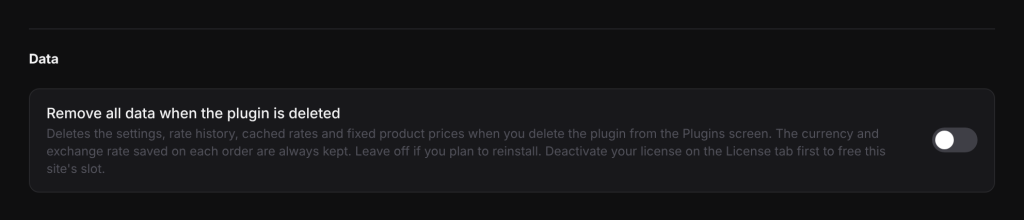
What is removed#
| Data | Setting off (default) | Setting on |
|---|---|---|
| Plugin settings (every tab) | Kept | Removed |
| Rate history and cached rates | Kept | Removed |
| Geo lookup cache | Kept | Removed |
| Fixed prices on products and variations | Kept | Removed |
| License key saved on this site | Kept | Removed |
| Currency, rate and store currency saved on each order | Kept | Kept |
With the setting on, the saved license key is removed, but the activation on your plan is not. Click Deactivate License before you delete the plugin, or the site keeps using a slot on your plan.
What is always kept#
Even with the setting on, deleting the plugin does not touch:
- Your orders, including the currency and rate saved on each one, and your WooCommerce Analytics data.
- Your WooCommerce currency settings. The store currency, symbol position and decimals stay as they were last saved.
- Settings in other tools. If the plugin added its cookie to Super Page Cache’s settings, or added an edge rule in Bunny CDN (a content delivery network), those stay. Remove them in those tools if you no longer need them.
- Cookies in shoppers’ browsers. They expire on their own after the cookie lifetime (30 days by default).
Examples#
- You deactivate the plugin to test a conflict. Your settings, fixed prices, rate history and license stay. Activate it again and everything is as before. New exchange rates are fetched on the first page view.
- You delete the plugin with the setting off, then reinstall. Your settings, fixed prices and rate history are all still there.
- You delete the plugin with the setting on. A reinstall starts fresh, with your store currency as the default and USD, EUR, GBP, JPY and CAD enabled. Old orders still show their currency and rate.
Good to know#
- Deactivating or deleting the plugin does not free your license slot. Only Deactivate License does.
- Leave the setting off if you plan to reinstall. Turn it on only right before you delete the plugin for good.
Related docs#
- Activating your license
- Updating the plugin
- The currency and exchange rate saved on each order
- Cache plugin setup