
Choosing an exchange rate provider
An exchange rate provider is the online service the plugin asks for current exchange rates. Those rates turn your store prices into every other currency: if 1 USD is worth 0.92 EUR, a $50 product shows as €46.00 before any fee or rounding. You choose one provider for the whole store, and you decide how long its rates are kept before the plugin asks again.
How it works#
The plugin fetches one set of rates from your provider and stores them against USD (for example USD = 1, EUR = 0.92, KWD = 0.3087), whatever your store currency is. Any other pair is worked out from those numbers. For a GBP store selling in EUR, the EUR price of 1 GBP is the EUR rate divided by the GBP rate.
Rates are kept in a cache (a saved copy) for the time you set in Rate Cache TTL (TTL means “time to live”). There is no background job: when the time is up, the next page that needs rates fetches a new set.
Set it up#
- Go to WooCommerce > Currency Switch > Rate Provider.
- Click a provider card. Frankfurter works without an account. Cards marked API KEY need a key from that provider’s website, and Custom JSON URL needs the address of your own endpoint.
- If your provider needs a key, paste it into the API Key field. For Custom JSON URL, the field is labelled JSON URL: paste the full address of your endpoint there.
- Choose a Rate Cache TTL.
- Click Save Changes.
- Click Force Refresh to fetch rates from the new provider straight away.
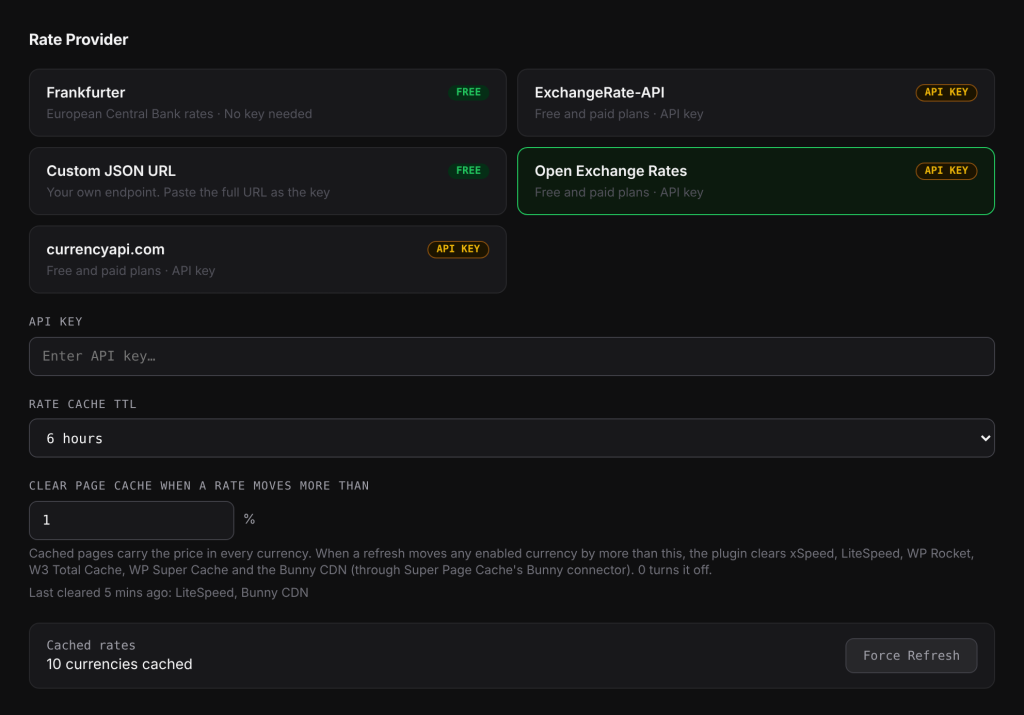
Saving a new provider does not throw away the rates already cached. Until the cache time runs out, your store keeps using the old provider’s rates. Click Force Refresh after saving to switch over immediately.
The providers#
| Provider | Key needed | Notes |
|---|---|---|
| Frankfurter | No | The default. European Central Bank rates. |
| ExchangeRate-API | Yes | Free and paid plans. |
| Open Exchange Rates | Yes | Free and paid plans. |
| currencyapi.com | Yes | Free and paid plans. |
| Custom JSON URL | A URL | Your own endpoint. Paste the full URL, including any access token, in the key field. |
A keyed provider with an empty key field fetches nothing, so make sure the key is saved before you click Force Refresh.
Custom JSON URL format#
Your endpoint must answer with HTTP status 200 and JSON in this shape:
{ "base": "USD", "rates": { "USD": 1, "EUR": 0.92, "KWD": 0.3087 } }ratesis required: one number per currency code, meaning “1 base = this many of that currency”.baseis optional. If you leave it out, USD is assumed.- Another base works too, such as
"base": "EUR". The plugin rebases the rates to USD, so in that case therateslist must includeUSD. - The URL must start with
http://orhttps://.
Settings explained#
| Setting | What it does | Default |
|---|---|---|
| Rate Cache TTL | How long fetched rates are kept: 1 hour, 6 hours, 12 hours or 24 hours. | 6 hours |
| Clear page cache when a rate moves more than | Clears supported page caches when new rates move any enabled currency by more than this percentage. 0 turns it off. | 1% |
| Force Refresh | Fetches new rates now, ignoring the cache time. |
The Cached rates bar next to Force Refresh shows how many currencies are in the cache, or Not cached yet. After you click Force Refresh it shows Refreshed: N currencies, or a failure message.
When the provider fails#
Each request to the provider waits up to 8 seconds. If the provider is down, the key is wrong or the reply is not valid:
- The plugin keeps using the last rates that worked, so prices do not fall back to unconverted amounts. (On a brand new install where no fetch has ever worked, there are no rates to fall back on yet.)
- It waits 60 seconds before trying again, so a broken provider is not called on every page view.
- A failed Force Refresh says Refresh failed. The provider returned no rates. The previous rates are still in use.
Examples#
A store with a 6-hour TTL. Rates are fetched at 09:00. Every page until about 15:00 uses those rates. The first page view after that fetches a new set, which starts the next 6 hours.
Switching to Open Exchange Rates. You click the Open Exchange Rates card, paste your key, click Save Changes, then Force Refresh. The bar shows Refreshed: with the number of currencies received, and prices now use the new rates.
Good to know#
- Not every provider has a rate for every currency. If a currency you enabled gets no rate and has no fixed rate, its prices are shown unconverted. Look at the Rate History table: a dash (-) means no rate for that currency. Switch to a provider that covers it, or set a fixed exchange rate.
- A shorter TTL means fresher rates but more requests to your provider. Check your plan’s request limit before choosing 1 hour.
Related docs#
- Fixed exchange rates
- Rate history, CSV export and update emails
- Clearing caches when exchange rates change
- How converted prices are worked out