
Adding the currency switcher
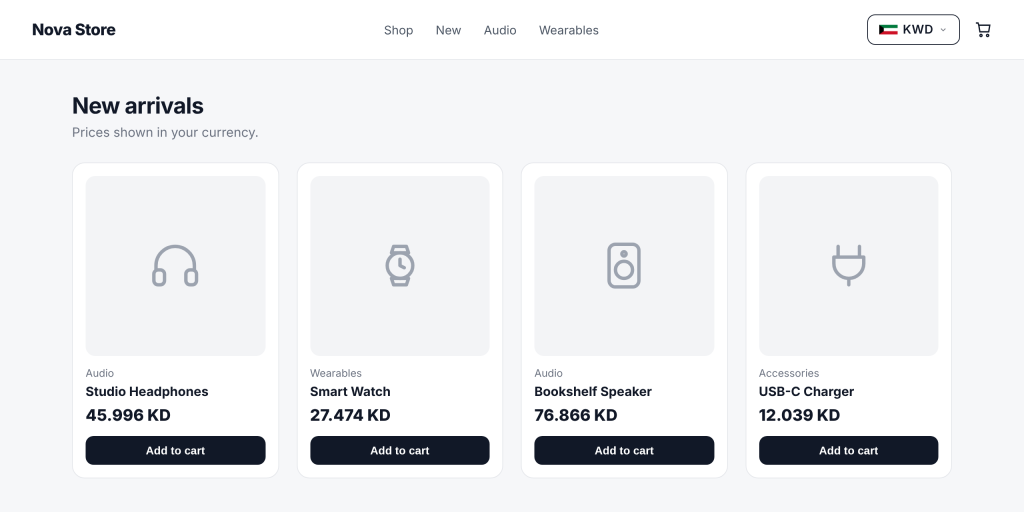
The currency switcher is the button shoppers click to see your prices in another currency. You add it with one shortcode, [wccs_switcher], and it works anywhere WordPress runs shortcodes. For example, a shopper from Kuwait lands on your store, sees KWD in the header, clicks it, picks USD from the popup, and every price on the page is shown in US dollars.
How it works#
The switcher has two parts:
- The button. It shows the currency the visitor is using right now. By default you see the flag, the currency code (for example
KWD) and a small down arrow. - The popup. Clicking the button opens a window titled Select Currency. It lists every currency you enabled on the Currencies tab, each with its flag, code, name and symbol. A small badge next to the title shows how many currencies there are, and a check mark shows the one in use. When the search bar is on, the visitor can type to filter the list.
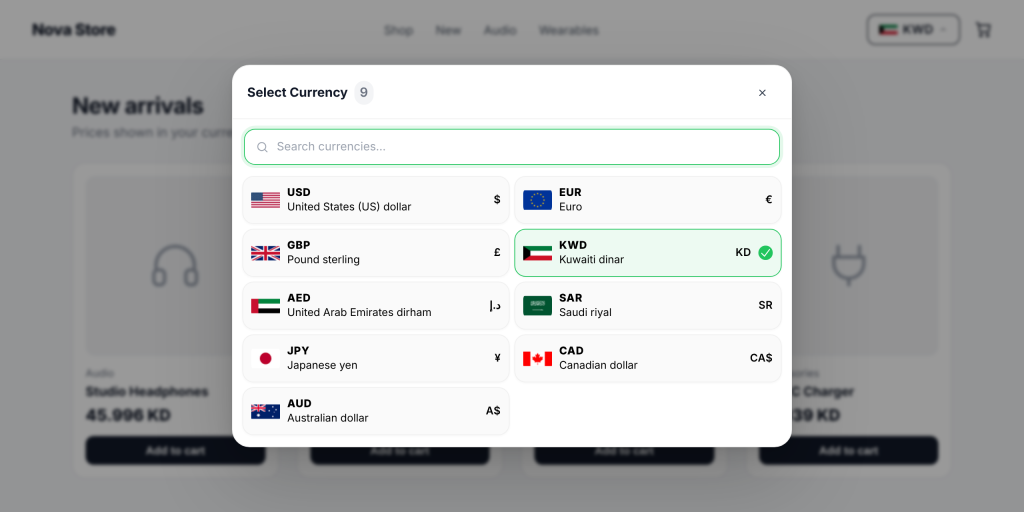
When the visitor picks a currency, the plugin saves the choice in a cookie (a small piece of data the browser keeps, named wccs_currency by default) and shows the new currency. By default the page reloads. You can switch to Instant mode (beta) under General > Switching Mode.
Add it to your site#
This is the shortcode to copy:
[wccs_switcher]- Copy the shortcode above.
- Paste it where you want the button to appear. Common places are a Shortcode block in your site header, a widget area, or a shortcode or text element in a page builder such as Bricks or Elementor.
- Save and view your store. Click the button to open the popup and try a currency.
You can place more than one switcher on a page, for example one in the header and one in the footer. They all stay in sync.
To put the switcher inside a menu instead, use the Nav Menu tab. You do not need the shortcode for that.
If you prefer to add the switcher in a PHP theme template, use the plugin’s function. It takes the same attributes as the shortcode:
<?php echo wccs_switcher_html( [ 'show_name' => '1' ] ); ?>Display attributes#
These attributes choose what the button shows. Use 1 for on and 0 for off.
| Attribute | Default | What it does |
|---|---|---|
show_flag |
1 |
Shows the flag of the current currency |
show_code |
1 |
Shows the currency code, for example USD |
show_symbol |
0 |
Shows the currency symbol, for example $ |
show_name |
0 |
Shows the full name, for example US Dollar |
show_chevron |
1 |
Shows the small down arrow |
show_search |
follows the setting | 1 or 0 turns the popup search bar on or off for this switcher only. Leave it out to follow Show search bar in modal on the General tab. |
The shortcode also takes styling attributes for colours, borders, spacing and popup text sizes. They are explained in Shortcode generator and styling options.
Examples#
A compact button with only the flag and code, and no arrow:
[wccs_switcher show_chevron="0"]A button that spells out the currency, for example “$ US Dollar”, with no flag:
[wccs_switcher show_flag="0" show_code="0" show_symbol="1" show_name="1"]A switcher without the search bar, even if search is on in the settings:
[wccs_switcher show_search="0"]Good to know#
- The popup only lists the currencies you enabled on the Currencies tab, in the order you set there.
- The popup opens over the whole page, even when the button sits inside a sliding mobile menu.
- If Lock currency at checkout is on (General > Checkout), the button is greyed out on the cart, checkout and pay pages, so the shopper cannot change currency mid-payment.
- On cached pages the button still shows each visitor’s own currency, because it reads the cookie in the browser.
- The shortcode needs WooCommerce to be active. Without WooCommerce it is not registered, so it does not show a switcher.
Related docs#
- Shortcode generator and styling options
- Switcher popup design
- Reload vs Instant switching
- Adding the switcher to your menus