
The currency and exchange rate saved on each order
When a shopper pays in a currency that is not your store currency, you still need to know what the sale was worth to you. WC Currency Switch saves the currency and the exchange rate on every order at the moment it is placed. For example, if your store sells in USD and a shopper in Kuwait pays 10.000 KWD, the order remembers that it was a KWD order and that 1 USD was worth 0.30870 KWD at checkout, so you can always see it was worth about 32.39 USD.
Your store currency is the currency set in WooCommerce. Some plugin labels call it the “base currency” or “store base”.
How it works#
The order itself stays in the currency the shopper paid in. WooCommerce stores the totals in that currency, and the payment is taken in that currency. On top of that, the plugin adds three values to the order:
| Saved value | Example |
|---|---|
| Order currency | KWD |
| Store currency at the time | USD |
| Exchange rate at the time | 1 USD = 0.30870 KWD |
These values are saved for orders from the classic checkout, the block checkout and express pay buttons such as Apple Pay and Google Pay that place orders through WooCommerce’s Store API (the system the block checkout uses).
The saved rate is the exchange rate from your rate provider at checkout. It is the plain rate, before any conversion fee or rounding you set on the Pricing tab, and it is not a fixed exchange rate you entered for the currency.
See the saved values on an order#
- Go to WooCommerce > Orders and open an order.
- Look for the Currency Info box in the right sidebar.
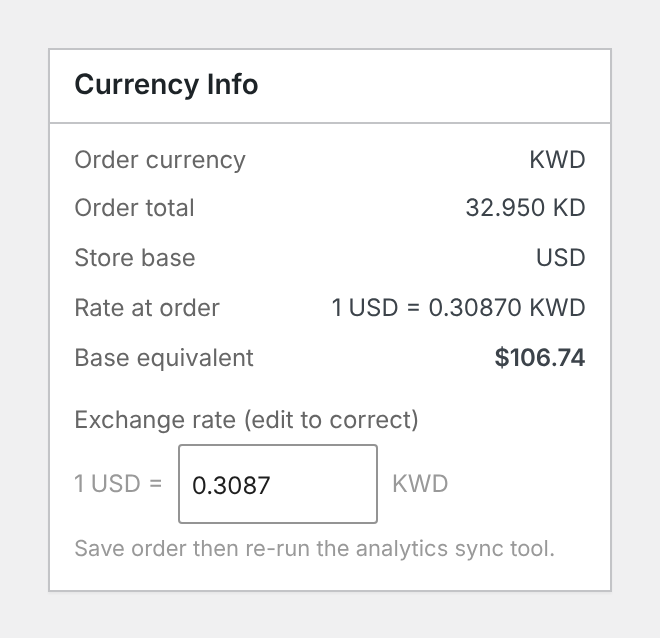
The box shows:
- Order currency: the currency the order was placed in.
- Order total: the total in that currency.
- Store base: your store currency. If the order is in your store currency, it shows “(same)” and the rate rows are hidden.
- Rate at order: the saved rate, shown as 1 store currency = X order currency, with five decimals.
- Base equivalent: the order total divided by the saved rate, in your store currency.
Correct a wrong rate#
If an order saved a wrong rate, for example because your rate provider was down when the order was placed, you can fix it on the order:
- Open the order.
- In Currency Info, change the number in Exchange rate (edit to correct). Enter it as 1 store currency = X order currency, the same way it is shown.
- Click Update to save the order.
- Go to WooCommerce > Status > Tools and run WCCS: Sync analytics to base currency so your reports use the new rate.
Only a number above 0 is saved. Leaving the field empty or entering 0 keeps the old rate.
Examples#
A KWD order in a USD store. The order total is 10.000 KWD and the saved rate is 1 USD = 0.30870 KWD.
- Base equivalent: 10.000 / 0.30870 = 32.39 USD
Correcting the rate. You find that the rate should have been 0.30500. You change the field to 0.305 and save. The Base equivalent becomes 10.000 / 0.305 = 32.79 USD. After you run the sync tool, WooCommerce Analytics counts the order as 32.79 USD too.
Good to know#
- The Base equivalent is worked out from the order total and the saved rate. It does not change the order, the payment or what the shopper was charged.
- If you turn on Settle orders in base currency under General, orders are placed in your store currency. Their rate is 1 and the box shows the store currency as “(same)”.
- The Rate History table on the Rate Provider tab shows what your store currency was worth each time rates were refreshed. It is useful for checking what the rate was on the day of an order.
- WooCommerce Analytics treats an order with no saved rate, or a saved rate of exactly 1, as having no rate and uses today’s rate instead.
Changing the rate in Currency Info only changes the saved rate used for reports and the Base equivalent. It never changes the order total.
Related docs#
- WooCommerce Analytics in your store currency
- Order emails and refunds in another currency
- Rate history, CSV export and update emails
- Checkout currency options