
Cache plugin setup
A cache plugin saves finished copies of your pages so they load fast. WC Currency Switch needs to know which cache plugin you use, so it can make sure each shopper keeps their own currency. Most cache plugins are set up for you when you pick them. Two need one setting added by hand. For example, if your store runs LiteSpeed Cache, you pick LiteSpeed Cache once, save, and a shopper who chose EUR keeps seeing EUR on every cached page.
How it works#
The visitor’s currency is stored in a browser cookie, wccs_currency by default. Cached pages carry every price in every enabled currency, and the visitor’s browser shows the right one. On top of that, the plugin tells your cache plugin about the cookie, so pages built in another currency are not sent to the wrong visitors. See How WC Currency Switch works with page caching for the full picture.
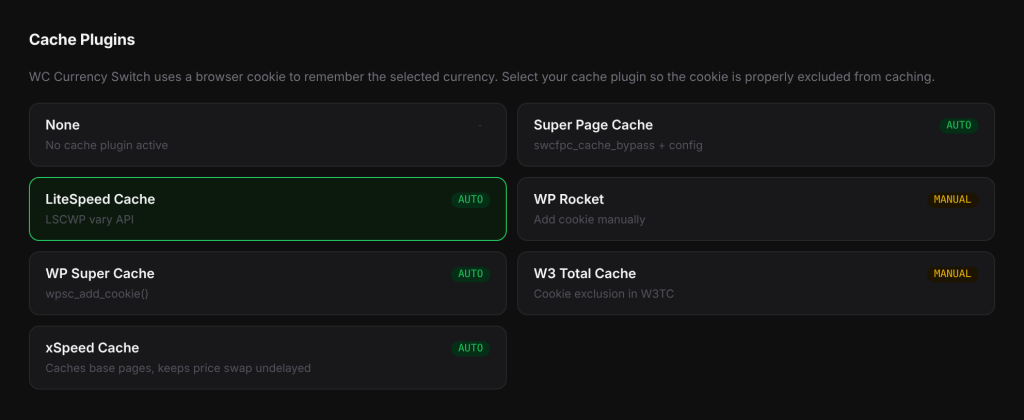
Set it up#
- Go to WooCommerce > Currency Switch > Integrations.
- Under Cache Plugins, click the card for your cache plugin. Cards marked AUTO are set up for you. Cards marked MANUAL need one step in your cache plugin.
- Click Save Changes.
- For a MANUAL plugin, follow the MANUAL STEP REQUIRED box that appears below the cards.
- Clear your page cache, and your CDN cache if you use one.
What each cache plugin needs#
| Cache plugin | Setup | What happens |
|---|---|---|
| Super Page Cache | Automatic | The cookie is added to Super Page Cache’s excluded cookies and its Cloudflare Worker bypass cookies. Pages in your default currency are cached. Visitors whose cookie holds another currency skip the disk cache and get a fresh page. If you use its Bunny connector, the plugin also adds a Bunny edge rule for the cookie. |
| LiteSpeed Cache | Automatic | The cookie is added to LiteSpeed’s vary cookies, so LiteSpeed keeps a separate cached copy for each currency. |
| WP Super Cache | Automatic | The cookie is registered with WP Super Cache, so it keeps separate cached copies by currency. |
| xSpeed Cache | Automatic, even if you do not pick it | Only pages built in your store currency are cached. The plugin’s scripts are kept out of xSpeed’s Delay JS and Defer JS, so prices switch as the page loads. |
| WP Rocket | Manual | In WP Rocket > Settings > Advanced Rules > Never Cache Cookies, add wccs_currency. |
| W3 Total Cache | Manual | In W3 Total Cache > Page Cache > Advanced > Rejected cookies, add wccs_currency. |
The settings for Super Page Cache are applied the next time you open an admin page after saving.
Using a different cache plugin#
If your cache plugin is not listed, pick None. Then look in your cache plugin’s settings for a field such as “Cookie exclusions” or “Bypass cookies” and add wccs_currency.
Examples#
WP Rocket. You pick WP Rocket and click Save Changes. A box appears that reads “In WP Rocket > Settings > Advanced Rules > Never Cache Cookies, add: wccs_currency”. You open WP Rocket, add wccs_currency to Never Cache Cookies, save, and clear WP Rocket’s cache.
Super Page Cache. Your default currency is USD. A visitor with no cookie, or with USD in the cookie, gets the cached page. A visitor with EUR in the cookie skips Super Page Cache’s disk cache and gets a page built in EUR.
Good to know#
- If you changed Cookie Name on the General tab, add your cookie name instead of
wccs_currency. The MANUAL STEP REQUIRED box already shows your cookie name. - The plugin also clears xSpeed, LiteSpeed, WP Rocket, W3 Total Cache and WP Super Cache when exchange rates move. This works for whichever of these is active, whatever card you picked.
- The plugin marks its scripts with
data-no-optimize="1"so JavaScript optimisers that respect this mark, such as LiteSpeed’s, do not delay the price switch.
After any change to these settings, clear the page cache and the CDN cache. Pages cached before the change can still show the wrong currency until they are removed.
Related docs#
- How WC Currency Switch works with page caching
- Bunny CDN and Cloudflare
- Clearing caches when exchange rates change
- Prices show the wrong currency on a cached page